Ionic Angular 快速入门
欢迎!本指南将带你了解 Ionic Angular 开发的基础知识。你将学习如何设置开发环境、生成一个简单的项目、探索项目结构,并了解 Ionic 组件的工作原理。这对于在构建你的第一个真实应用之前熟悉 Ionic Angular 非常适合。
🌐 Welcome! This guide will walk you through the basics of Ionic Angular development. You'll learn how to set up your development environment, generate a simple project, explore the project structure, and understand how Ionic components work. This is perfect for getting familiar with Ionic Angular before building your first real app.
如果你想要了解 Ionic Angular 是什么以及它如何融入 Angular 生态系统,请参阅 Ionic Angular 概览。
🌐 If you're looking for a high-level overview of what Ionic Angular is and how it fits into the Angular ecosystem, see the Ionic Angular Overview.
先决条件
🌐 Prerequisites
在开始之前,确保你的计算机上已安装 Node.js 和 npm。你可以通过运行以下命令来检查:
🌐 Before you begin, make sure you have Node.js and npm installed on your machine. You can check by running:
node -v
npm -v
如果你没有 Node.js 和 npm,请在此下载 Node.js(其中包含 npm)。
🌐 If you don't have Node.js and npm, download Node.js here (which includes npm).
使用 Ionic CLI 创建项目
🌐 Create a Project with the Ionic CLI
首先,安装最新的 Ionic CLI :
🌐 First, install the latest Ionic CLI:
npm install -g @ionic/cli
然后,运行以下命令来创建并运行一个新项目:
🌐 Then, run the following commands to create and run a new project:
ionic start myApp blank --type angular

cd myApp
ionic serve
在第一个提示时,选择 Standalone。
🌐 At the first prompt, choose Standalone.
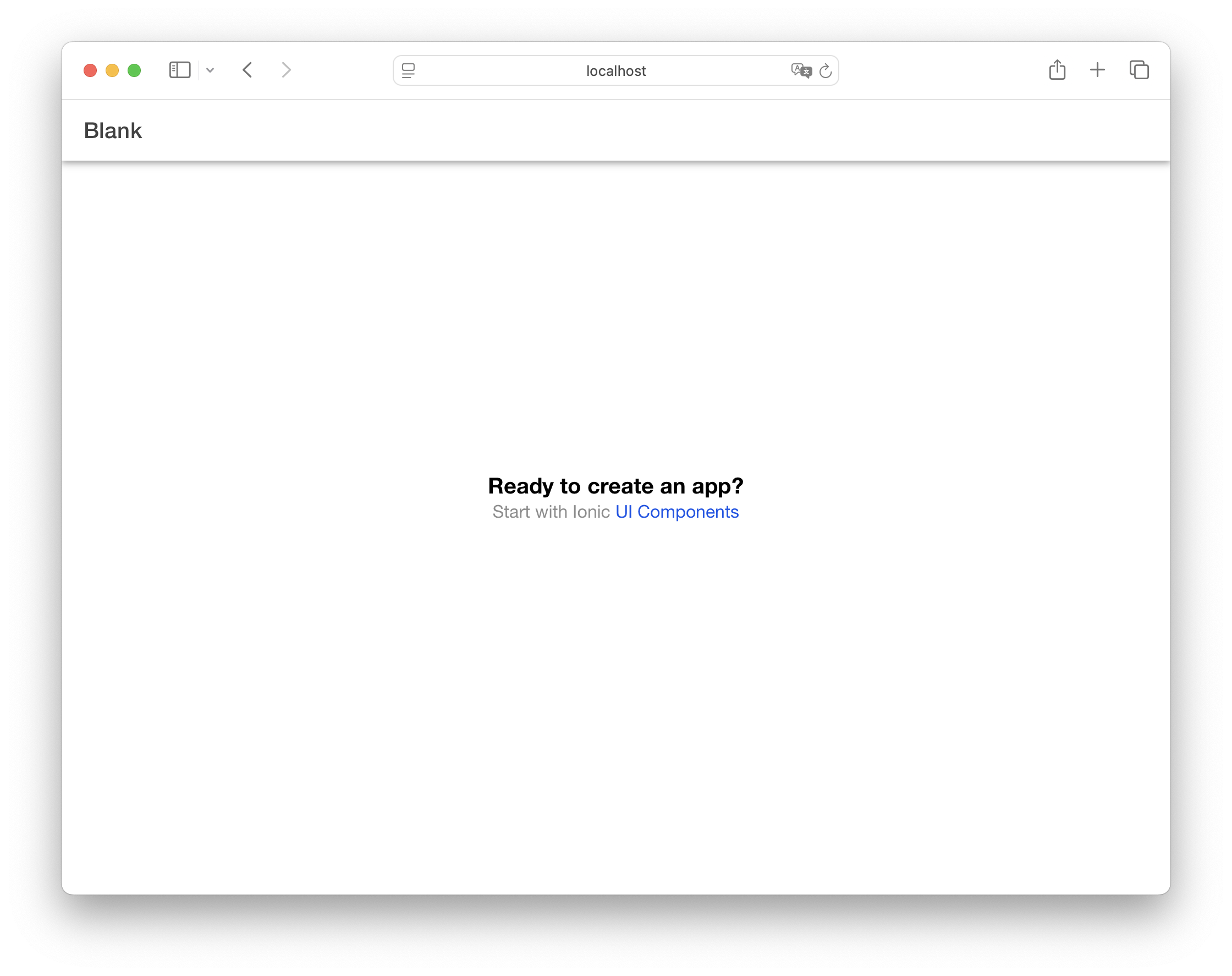
运行 ionic serve 后,你的项目将在浏览器中打开。
🌐 After running ionic serve, your project will open in the browser.
探索项目结构
🌐 Explore the Project Structure
你的新应用的目录将如下所示:
🌐 Your new app's directory will look like this:
└── src/
    └── app
        ├── app.component.html
        ├── app.component.scss
        ├── app.component.ts
        ├── app.routes.ts
        └── home/
            ├── home.page.html
            ├── home.page.scss
            ├── home.page.spec.ts
            └── home.page.ts
下面示例中的所有文件路径都是相对于项目根目录的。
让我们浏览这些文件来了解应用的结构。
🌐 Let's walk through these files to understand the app's structure.
查看应用组件
🌐 View the App Component
你的应用的根目录定义在 app.component.ts 中:
🌐 The root of your app is defined in app.component.ts:
import { Component } from '@angular/core';
import { IonApp, IonRouterOutlet } from '@ionic/angular/standalone';

@Component({
  selector: 'app-root',
  templateUrl: 'app.component.html',
  imports: [IonApp, IonRouterOutlet],
})
export class AppComponent {
  constructor() {}
}
以及它在 app.component.html 中的模板:
🌐 And its template in app.component.html:
<ion-app>
  <ion-router-outlet></ion-router-outlet>
</ion-app>
这设置了你的应用的根,使用了 Ionic 的 ion-app 和 ion-router-outlet 组件。路由出口是显示你的页面的地方。
🌐 This sets up the root of your application, using Ionic's ion-app and ion-router-outlet components. The router outlet is where your pages will be displayed.
查看路由
🌐 View Routes
路由在 app.routes.ts 中定义:
🌐 Routes are defined in app.routes.ts:
import { Routes } from '@angular/router';

export const routes: Routes = [
  {
    path: 'home',
    loadComponent: () => import('./home/home.page').then((m) => m.HomePage),
  },
  {
    path: '',
    redirectTo: 'home',
    pathMatch: 'full',
  },
];
当你访问根 URL (/) 时,HomePage 组件将被加载。
🌐 When you visit the root URL (/), the HomePage component will be loaded.
查看主页
🌐 View the Home Page
在 home.page.ts 中定义的主页组件导入了它使用的 Ionic 组件:
🌐 The Home page component, defined in home.page.ts, imports the Ionic components it uses:
import { Component } from '@angular/core';
import { IonHeader, IonToolbar, IonTitle, IonContent } from '@ionic/angular/standalone';

@Component({
  selector: 'app-home',
  templateUrl: 'home.page.html',
  styleUrls: ['home.page.scss'],
  imports: [IonHeader, IonToolbar, IonTitle, IonContent],
})
export class HomePage {
  constructor() {}
}
而模板在 home.page.html 文件中使用了那些组件:
🌐 And the template, in the home.page.html file, uses those components:
<ion-header [translucent]="true">
  <ion-toolbar>
    <ion-title> Blank </ion-title>
  </ion-toolbar>
</ion-header>

<ion-content [fullscreen]="true">
  <ion-header collapse="condense">
    <ion-toolbar>
      <ion-title size="large">Blank</ion-title>
    </ion-toolbar>
  </ion-header>

  <div id="container">
    <strong>Ready to create an app?</strong>
    <p>
      Start with Ionic
      <a target="_blank" rel="noopener noreferrer" href="https://ionic.nodejs.cn/components">UI Components</a>
    </p>
  </div>
</ion-content>
这会创建一个带有标题和可滚动内容区域的页面。第二个标题显示一个可折叠的大标题,当内容位于顶部时会在 iOS 设备上显示,然后在向下滚动时收缩以在第一个标题中显示较小的标题。
🌐 This creates a page with a header and scrollable content area. The second header shows a collapsible large title that displays on iOS devices when at the top of the content, then condenses to show the smaller title in the first header when scrolling down.
添加一个 Ionic 组件
🌐 Add an Ionic Component
你可以通过添加更多 Ionic UI 组件来增强你的主页。例如,在 ion-content 的末尾添加一个 按钮:
🌐 You can enhance your Home page with more Ionic UI components. For example, add a Button at the end of the ion-content:
<ion-content>


  <ion-button>Navigate</ion-button>
</ion-content>
然后,在 home.page.ts 中导入 IonButton 组件:
🌐 Then, import the IonButton component in home.page.ts:
import { IonButton, IonContent, IonHeader, IonTitle, IonToolbar } from '@ionic/angular/standalone';

@Component({
  // ...existing config...
  imports: [IonButton, IonContent, IonHeader, IonTitle, IonToolbar],
})
添加新页面
🌐 Add a New Page
要添加新页面,请使用 CLI 生成它:
🌐 To add a new page, generate it with the CLI:
ionic generate page new
一条路由将自动添加到 app.routes.ts。
🌐 A route will be automatically added to app.routes.ts.
在 new.page.html 中,你可以向 工具栏 添加一个 返回按钮:
🌐 In new.page.html, you can add a Back Button to the Toolbar:
<ion-header [translucent]="true">
  <ion-toolbar>
    <ion-buttons slot="start">
      <ion-back-button defaultHref="/"></ion-back-button>
    </ion-buttons>
    <ion-title>new</ion-title>
  </ion-toolbar>
</ion-header>
并在 new.page.ts 中导入 IonBackButton 和 IonButtons:
🌐 And import IonBackButton and IonButtons in new.page.ts:
import { IonBackButton, IonButtons, IonContent, IonHeader, IonTitle, IonToolbar } from '@ionic/angular/standalone';

@Component({
  // ...existing config...
  imports: [IonBackButton, IonButtons, IonContent, IonHeader, IonTitle, IonToolbar],
})
ion-back-button 会自动处理返回到前一页的导航,如果没有历史记录,则返回到 /。
🌐 The ion-back-button will automatically handle navigation back to the previous page, or to / if there is no history.
导航到新页面
🌐 Navigate to the New Page
要导航到新页面,请更新 home.page.html 中的按钮:
🌐 To navigate to the new page, update the button in home.page.html:
<ion-button [routerLink]="['/new']">Navigate</ion-button>
然后,在 home.page.ts 中导入 RouterLink:
🌐 Then, import RouterLink in home.page.ts:
import { RouterLink } from '@angular/router';

@Component({
  // ...existing config...
  imports: [IonButton, IonContent, IonHeader, IonTitle, IonToolbar, RouterLink],
})
导航也可以使用 Angular 的 Router 服务来执行。更多信息请参阅 Angular 导航文档。
将图标添加到新页面
🌐 Add Icons to the New Page
Ionic Angular 自带 Ionicons 预安装。你可以通过在 ion-icon 组件上设置 name 属性来使用任意图标。将以下图标添加到 new.page.html:
🌐 Ionic Angular comes with Ionicons pre-installed. You can use any icon by setting the name property on the ion-icon component. Add the following icons to new.page.html:
<ion-content>


  <ion-icon name="heart"></ion-icon>
  <ion-icon name="logo-ionic"></ion-icon>
</ion-content>
你还需要在 new.page.ts 中导入并注册这些图标:
🌐 You'll also need to import and register these icons in new.page.ts:
// ...existing imports...
import { IonBackButton, IonButtons, IonContent, IonHeader, IonIcon, IonTitle, IonToolbar } from '@ionic/angular/standalone';
import { addIcons } from 'ionicons';
import { heart, logoIonic } from 'ionicons/icons';

@Component({
  // ...existing config...
  imports: [IonBackButton, IonButtons, IonContent, IonHeader, IonIcon, IonTitle, IonToolbar],
})
然后,更新页面的构造函数以使用 addIcons:
🌐 Then, update the constructor of the page to use addIcons:
export class NewPage implements OnInit {
  constructor() {
    addIcons({ heart, logoIonic });
  }

  ngOnInit() {}
}
或者,你可以在 app.component.ts 中注册图标,以便在整个应用中使用它们。
🌐 Alternatively, you can register icons in app.component.ts to use them throughout your app.
欲了解更多信息,请参阅 Icon 文档 和 Ionicons 文档。
🌐 For more information, see the Icon documentation and the Ionicons documentation.
调用组件方法
🌐 Call Component Methods
让我们添加一个可以将内容区域滚动到底部的按钮。
🌐 Let's add a button that can scroll the content area to the bottom.
在你的 new.page.html 中更新 ion-content,在现有图标之后添加一个按钮和一些项目:
🌐 Update the ion-content in your new.page.html to include a button and some items after the existing icons:
<ion-content [fullscreen]="true" #content>
  <ion-header collapse="condense">
    <ion-toolbar>
      <ion-title size="large">new</ion-title>
    </ion-toolbar>
  </ion-header>

  <ion-icon name="heart"></ion-icon>
  <ion-icon name="logo-ionic"></ion-icon>

  <ion-button (click)="scrollToBottom()">Scroll to Bottom</ion-button>


  @for (item of items; track $index; let i = $index) {
  <ion-item>
    <ion-label>Item {{ i + 1 }}</ion-label>
  </ion-item>
  }
</ion-content>
在组件中,添加 ViewChild 导入、新组件导入并定义 scrollToBottom 函数:
🌐 In the component, add the ViewChild import, the new component imports and define the scrollToBottom function:
import { Component, OnInit, ViewChild } from '@angular/core';
import {
  IonBackButton,
  IonButton,
  IonButtons,
  IonContent,
  IonHeader,
  IonIcon,
  IonItem,
  IonLabel,
  IonTitle,
  IonToolbar,
} from '@ionic/angular/standalone';
import { addIcons } from 'ionicons';
import { heart, logoIonic } from 'ionicons/icons';

@Component({
  // ...existing config...
  imports: [
    IonBackButton,
    IonButton,
    IonButtons,
    IonContent,
    IonHeader,
    IonIcon,
    IonItem,
    IonLabel,
    IonTitle,
    IonToolbar,
  ],
})
export class NewPage implements OnInit {
  @ViewChild(IonContent) content!: IonContent;

  items = Array.from({ length: 50 }, (_, i) => i);

  constructor() {
    addIcons({ heart, logoIonic });
  }

  ngOnInit() {}

  scrollToBottom = () => {
    this.content.scrollToBottom(300);
  };
}
调用 Ionic 组件的方法:
🌐 To call methods on Ionic components:
- 为组件创建一个
ViewChild引用 - 直接在组件实例上调用该方法
你可以在它们的 API 文档的 方法 部分找到每个组件的可用方法。
🌐 You can find available methods for each component in the Methods section of their API documentation.
在设备上运行
🌐 Run on a Device
Ionic 的组件无处不在:在 iOS、Android 和 PWA 上都能使用。要部署到移动端,请使用 Capacitor:
🌐 Ionic's components work everywhere: on iOS, Android, and PWAs. To deploy to mobile, use Capacitor:
ionic build
ionic cap add ios
ionic cap add android
在它们的 IDE 中打开本地项目:
🌐 Open the native projects in their IDEs:
ionic cap open ios
ionic cap open android
更多信息请参阅 电容器入门指南。
🌐 See Capacitor's Getting Started guide for more.
探索更多
🌐 Explore More
本指南涵盖了创建 Ionic Angular 应用、添加导航以及引入 Capacitor 用于原生构建的基础知识。要深入了解,请查看:
🌐 This guide covered the basics of creating an Ionic Angular app, adding navigation, and introducing Capacitor for native builds. To dive deeper, check out:

使用 Ionic Angular 和原生设备功能构建一个真正的照片图库应用。
从官方 Angular 文档了解更多关于 Angular 核心概念、工具和最佳实践的信息。

了解如何在 Ionic Angular 应用中使用 Angular Router 处理路由和导航。

探索 Ionic 丰富的 UI 组件库,用于构建美观的应用。

了解如何使用 Ionic 强大的主题系统自定义应用的外观和感觉。

探索如何访问本地设备功能,并使用 Capacitor 将你的应用部署到 iOS、Android 和网络。